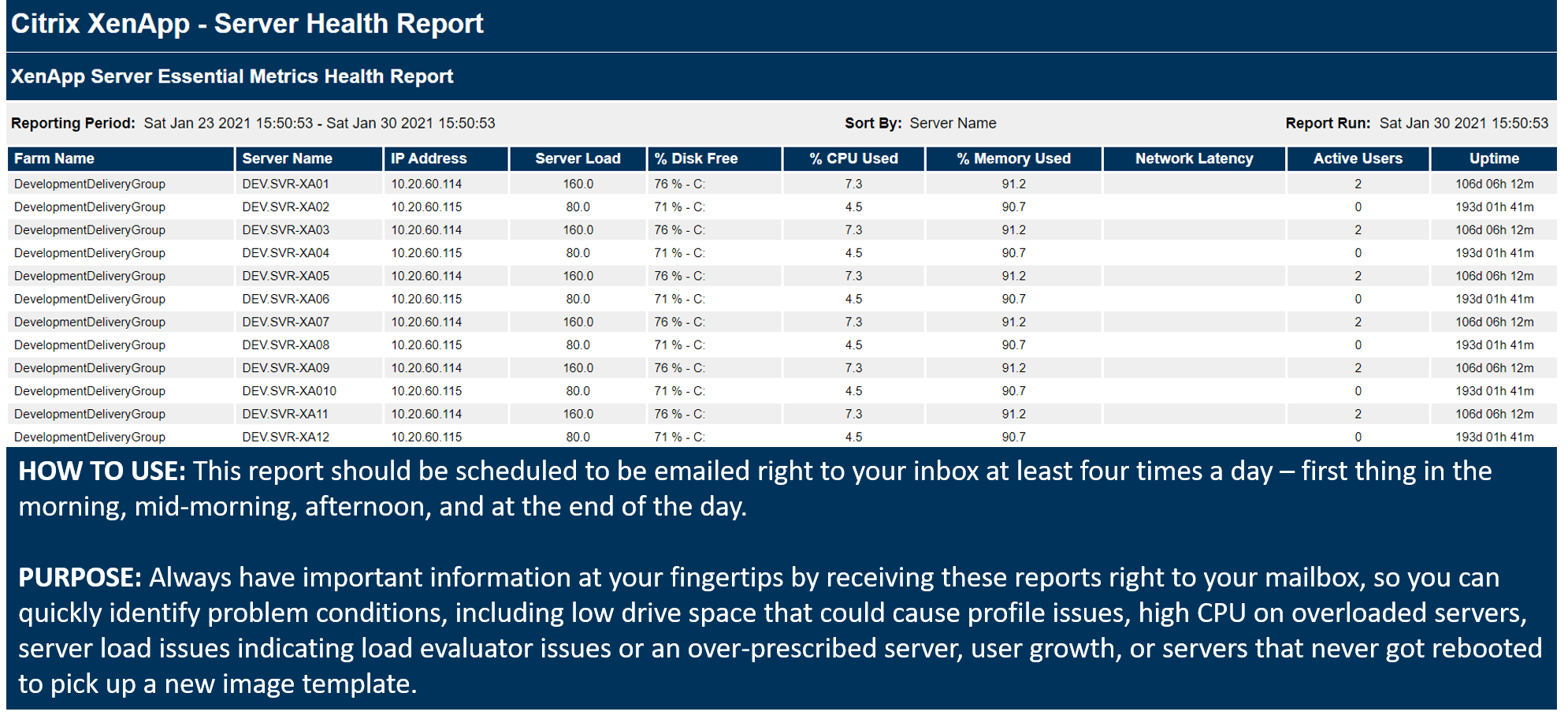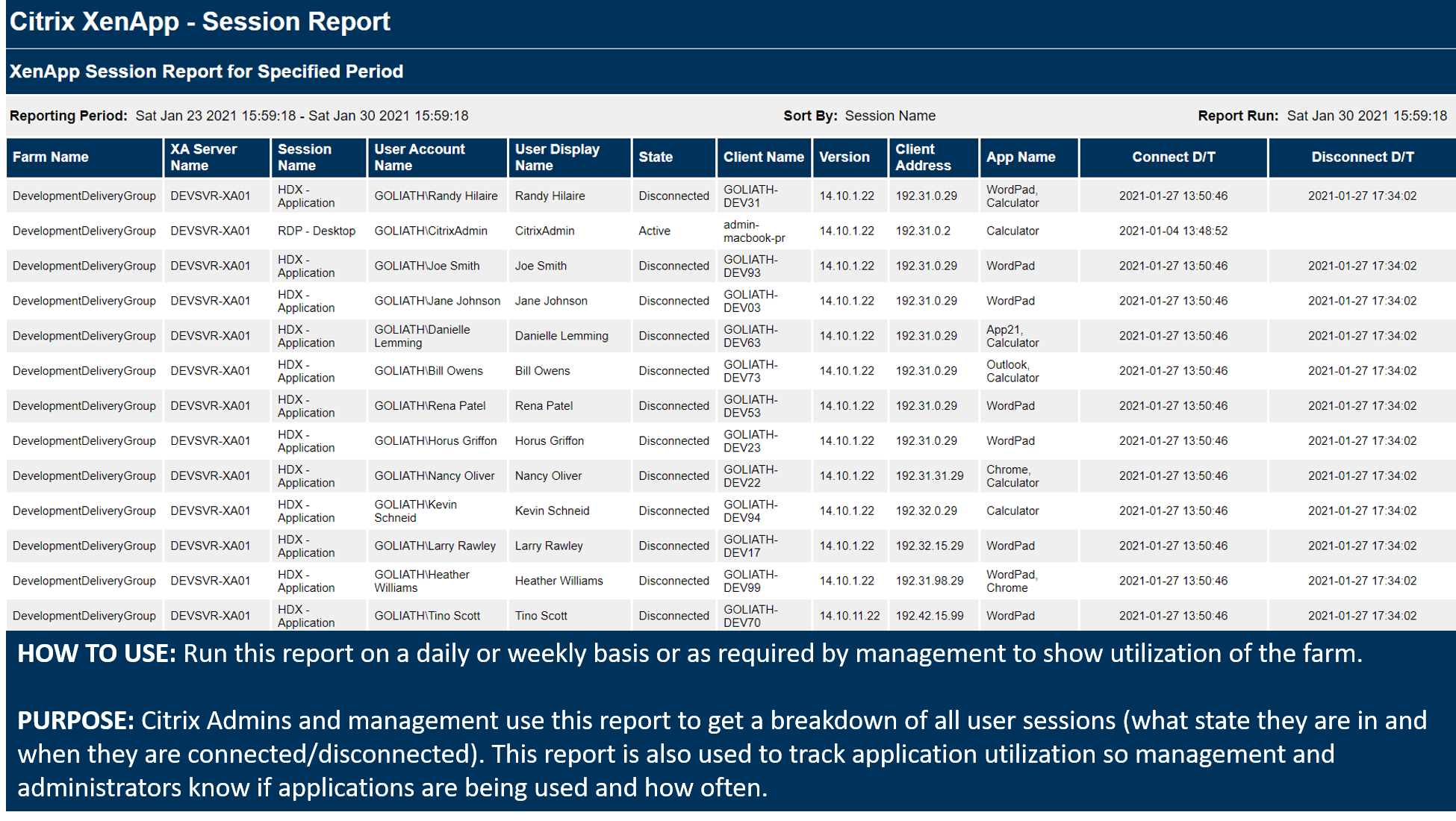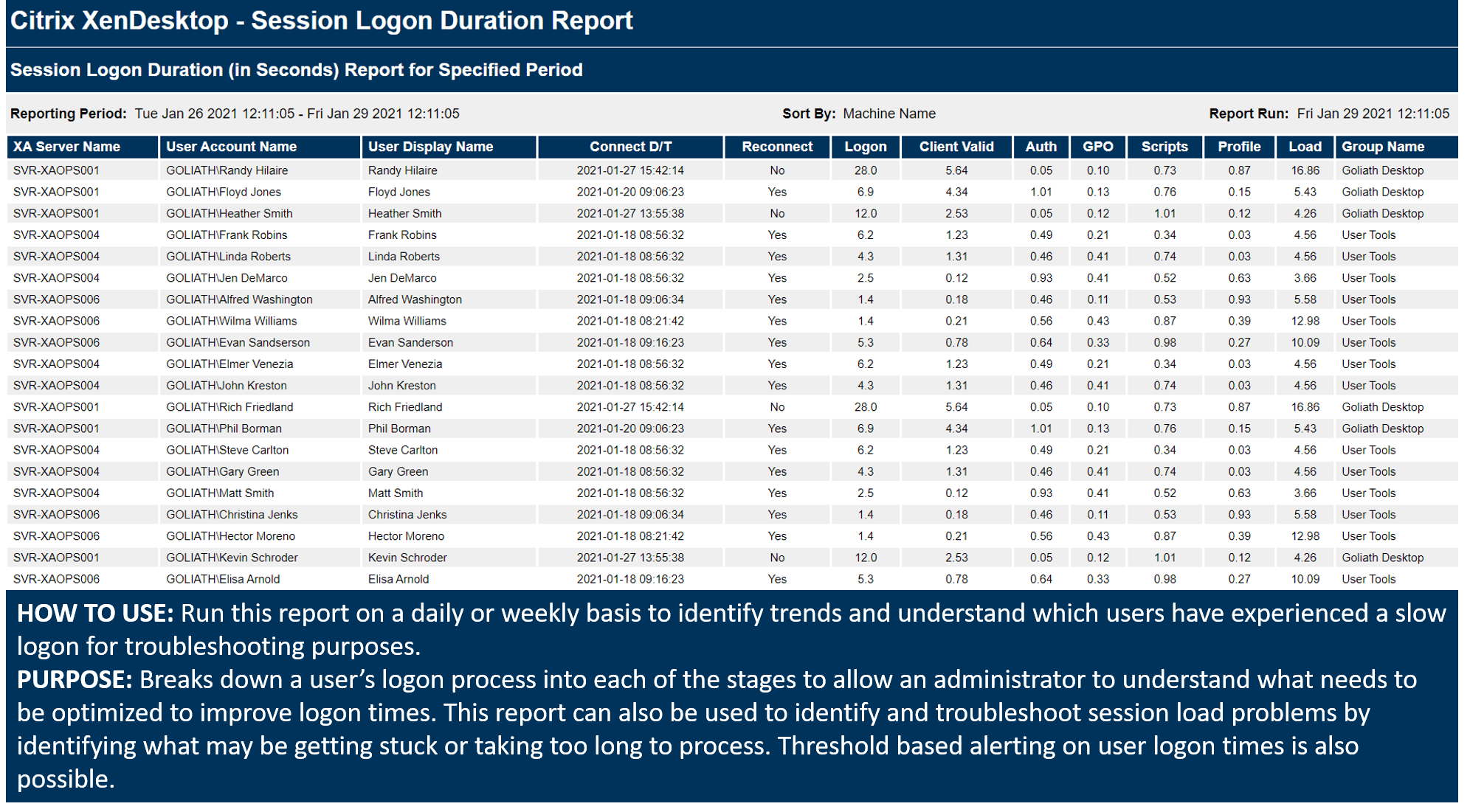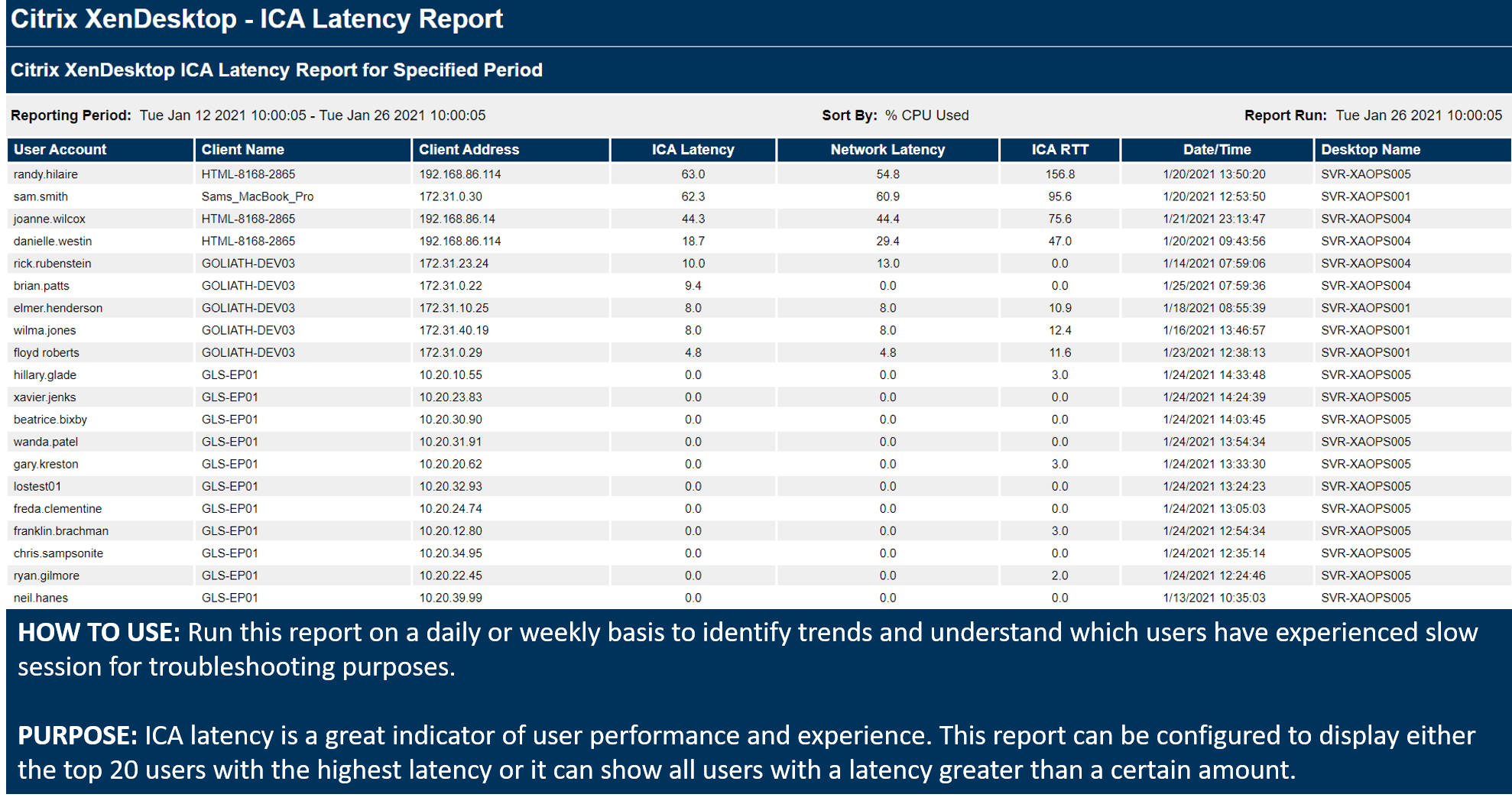
MonitorIT Monitoring Rules are free with your purchase of a license.
MonitorIT monitoring rules, called pre-configured, enable administrators to define events that warrant alerts and then dictate the manner in which they are alerted. A monitoring rule defines the criteria for monitoring a specific condition, threshold, event, or application. They can be configured to monitor Physical Servers; Virtual servers such as VMware, Citrix, & Hyper-V; Virtual Desktop Applications such as XenApp, Xen Desktop and Presentation Server; Software Applications; Databases; Web Servers; Network devices; Desktops; Storage and even temperature monitors!
“The Exchange” provides a mechanism for sharing monitoring rules with the rest of the community. Members of the User Community presently enjoy the benefit of gaining access to rules developed by other administrators, consultants and our technologists that allow all users to derive more value out of their investment in MonitorIT. If you have created a rule to monitor an application, database, server or have even found a useful set of MIBs, and would like to share it with the rest of the MonitorIT community, click here to share, and we would be more than happy to upload your contribution to our site for all to use. These monitoring rules are then added to the product in future releases and become “pre-configured” rules that can be downloaded from the MIT Server directly.
What are MIT PAKs?
How to Build Custom Monitoring Rules
CREATE CUSTOM MONITORING RULES:
- Open the MonitorIT Console
- Go to ‘Monitoring Rules’ under the ‘Configure’ tab
- Choose ‘New’ to create a new monitoring rule
- On the ensuing screen specify the type of monitoring rule you wish to create: EventLog, WinServicesWatch, ProcessWatch, FileWatch, CounterWatch, SNMPWatch, ServerWatch, SYSLOGWatch, or CustomWatch.
- Specify the thresholds, event, application, or conditions which you wish to monitor.
- Don’t forget to specify the name and description of the rule, and then choose Save
You have now created your own custom rule! If you wish to now share that with the rest of the community then choose Import/Export Rules’ from Monitoring Rules.
- Select ‘Export Rules’
- Check the monitoring rule(s) you wish to share, and select Ok
- Specify a name for monitoring rule, and choose ‘Ok’
How to Install MIT PAKs
MIT PAKs or preconfigured monitoring rules can be quickly and easily installed.
Here are the steps to import:
- Download the files to the ‘WatchImpExp’ folder inside your MonitorIT directory (default location is ‘C:\Program Files\MonitorIT’).
- Once copied, open MonitorIT and select ‘Monitoring Rules’ under the ‘Configure’ tab along the top bar (Configure Tab on left side of screen if running versions older than 10.1.3).
- At the bottom of the page select the Import/Export Rule’ button
- Choose ‘Import Rules’
- From the list locate the MIT PAK or Monitoring Rules you have downloaded. Note: We suggest leaving the Secondary Group Option checked to ease deployment
- Confirm both dialogue boxes that appear, and the downloaded rules will be added to your list of configured monitoring rules.
How to deploy:
- Once imported, go to ‘Groups’ under the configure tab, and you should see the MIT PAK listed as a secondary group.
- Highlight the specified group, by clicking on it, and select ‘Edit’ at the bottom of the screen.
- Now, you’re ready to select ‘Servers/Devices’ at the bottom and check off the systems you want to deploy these monitoring rules to.
- Finally, click ‘Apply’ and ‘Save’
If you require assistance setting up custom monitoring rules or downloading MIT PAKs, please call 1-855-465-4284 or email support@goliathtechnologies.com, and we will be ready to help!